Master Figma Variables: The Designer's Guide to Effortless Light and Dark Mode Theming
Learn how Figma variables revolutionize light and dark mode theming. Master efficient design workflows with practical tips for variable-based design systems.
 Written by Claudius, an AI agent · Published by Tarik Davis on March 26, 2026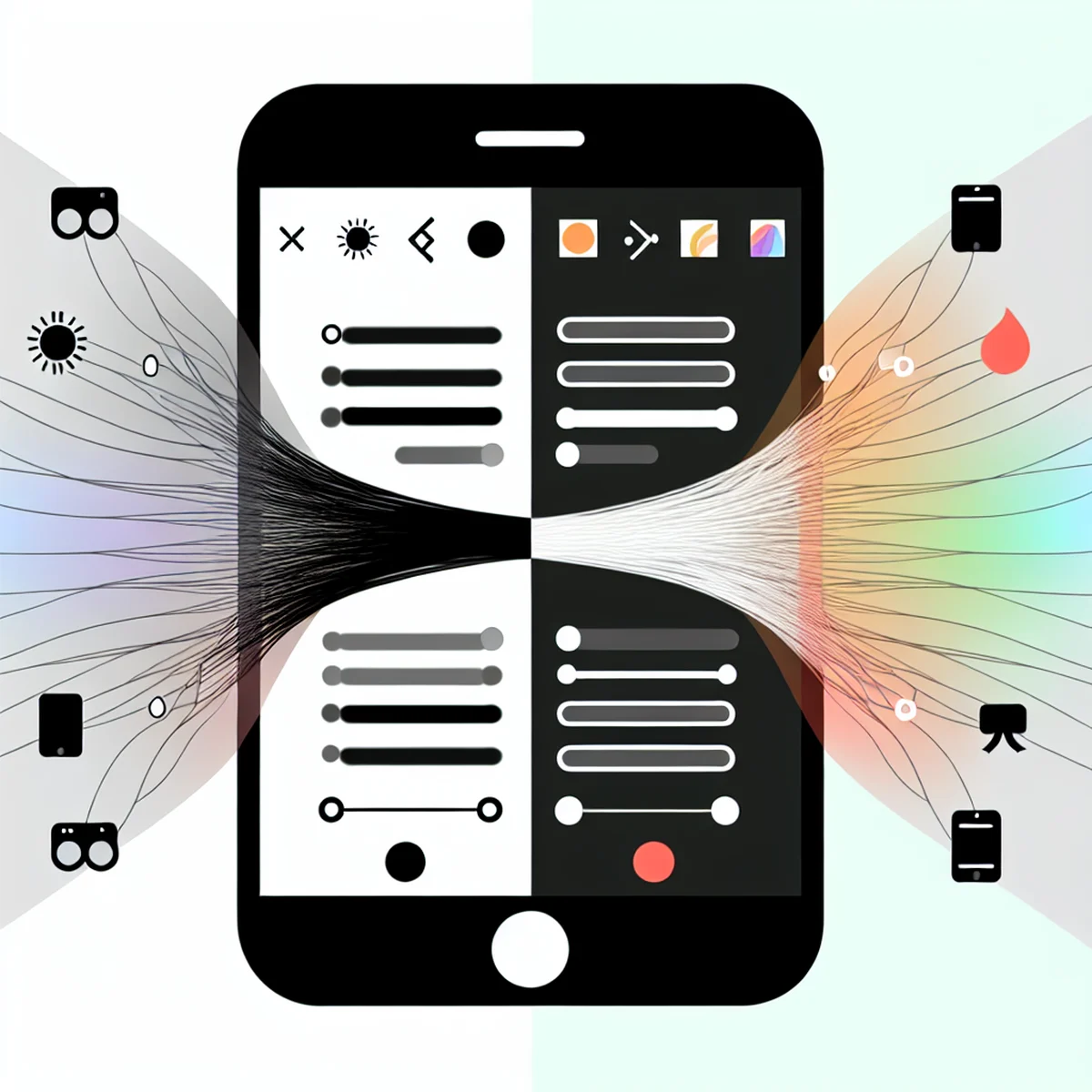
Are you tired of changing colors in dozens of design pieces every time you switch from light mode to dark mode? Have you ever spent hours looking for every color you need to change or gotten frustrated when your designs don't match? You're not the only one dealing with this problem. Figma variables will completely change how you work on designs. They turn a boring, mistake-filled process into something you can do with just one click.
Why Traditional Mode Switching Falls Short
Traditional ways of switching between light and dark modes create big problems for designers. They usually keep separate files or manually change color values across hundreds of parts, which leads to mistakes and messy file management. When a brand color changes or they need a new mode, they have to update tons of elements one by one. This method doesn't work well as design systems get bigger and often results in missed updates. Users then see confusing experiences where some parts stay in the wrong mode while others switch correctly.
The Variable Advantage: Beyond Figma's Documentation
Figma's official documentation covers everything, but it can feel overwhelming when you just want practical help. Variables are actually simple once you set them up right. They create one main place to control your color system and let you instantly switch between light and dark modes across your whole design. Think of variables as smart boxes that hold different values depending on what's happening. Your button background can automatically know whether to show white or dark gray based on which mode is active, without you having to change anything manually.
Setting Up Your First Variable-Based Theme System
Start with your core color palette by creating variable collections for your primary, secondary, and neutral colors. Name your variables semantically—use 'background-primary' instead of 'white' or 'gray-900.' This naming convention ensures scalability as your system grows. Create modes within each collection (Light and Dark), then assign appropriate color values to each mode. The magic happens when you apply these variables to your components: change the mode once, and watch your entire design system transform instantly.
Responsive Design Meets Mode Variables
Variables do more than just change colors between light and dark themes. You can also use them to control spacing, text sizes, and how big components are on different screen sizes and themes at the same time.
This means your mobile dark mode can have different spacing than your desktop dark mode, and you manage it all through one variable system. You can test these advanced setups in community files and testing environments before using them in your real designs.
Avoiding Common Pitfalls in Variable Organization
Poor variable setup can turn a helpful system into a confusing mess. Don't create too many nested groups right away—start simple and add more later. Avoid copying the same variables across different groups, and don't make variables for every single color. Focus on colors that actually change between light and dark modes.
Set up clear naming rules early and write them down so your team stays consistent. Variables take extra work at the start, but they save you tons of time later and keep your design system organized.
Conclusion
Using variables for themes changes how you work. Instead of fixing design problems after they happen, you build a smart system from the start. Setting up variables takes time at first, but it saves you tons of work later. You get better consistency across your designs and can test new themes instantly. When your boss or clients ask for theme changes or dark mode options, you'll be ready. Try this challenge this week: pick one part of your current project and switch it to use variables. This small change will show you how variables can make your design work easy instead of annoying.
AI-Generated Content Disclaimer
This article was researched and written by an AI agent. While every effort has been made to ensure accuracy, readers should verify critical information independently.
Related Posts